
To use Classwize, these steps have to be completed once (per class). Once students turn on these laptop settings, it's set until they get a new device.
Please Note: When using Classwize for the FIRST time, it's super-duper important that your students follow these directions or you won't be able to see their screens and it will take a bit of class time to manually rectify the situation.
EVERYONE (teachers too!) should restart the laptop!!
Teachers: Go to Classlink, launch Classwise and start the session (class). After the session is started, we can move along to setting up each student's laptop.
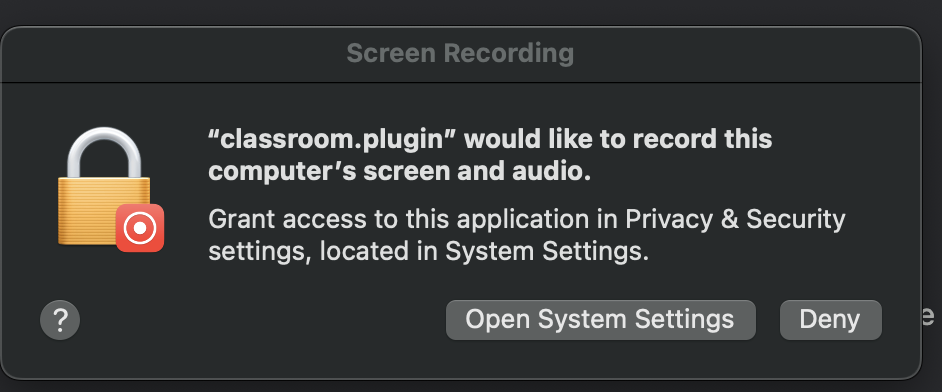
Students: Open Chrome. They should see the first message appear (image below). They must hit Systems Settings or Allow and NOT Deny.
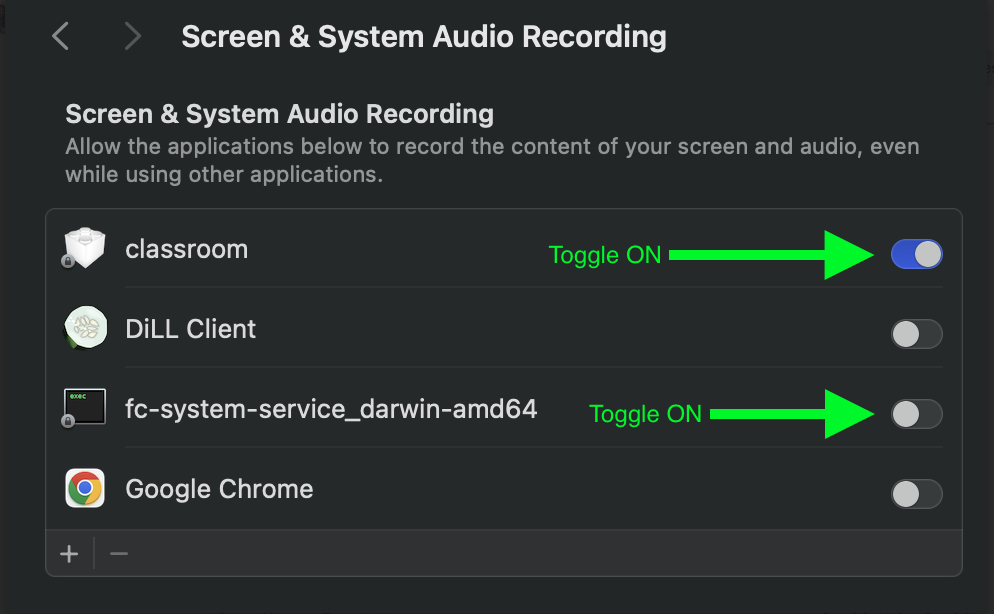
If students select deny by 'accident' they will each need to go to Systems Settings and find Screen & System Audio Recording in Settings and manually allow access.
Students: Toggle on "classroom" in System Settings AND the fc-system-service_darwin-amd64 thingies.
Students: Select Allow when the next message box appears.
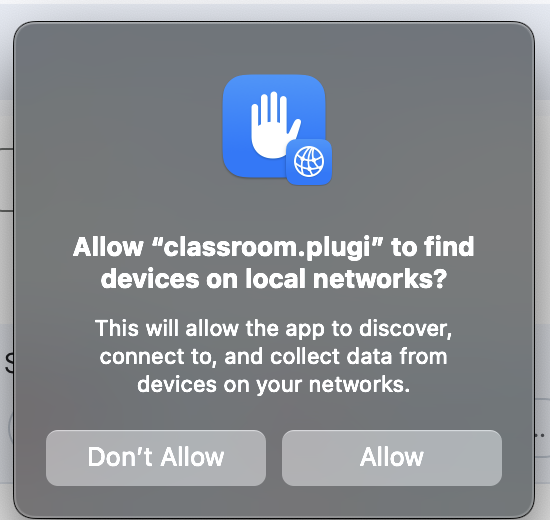
Teachers: If students don't have any message boxes, you can click on the Student's thumbnail in your dashboard and the message box should appear within a few seconds on their screen. They should click Allow when it does.
RECOMMENDED: Do a small group at a time so students don't "accidentally" make the incorrect access selections requiring manual intervention.
Using Classwize 101
Visit the Classwize Academy for usage guides. Accessible via Classwize dashboard.

Resources
Classwize Teacher's Guide (.pdf)