
It's important that your students follow these directions or you won't be able to see their screens:
- EVERYONE (teachers too!) restart the laptop!!
- Teacher: Log into Classwize and start the session
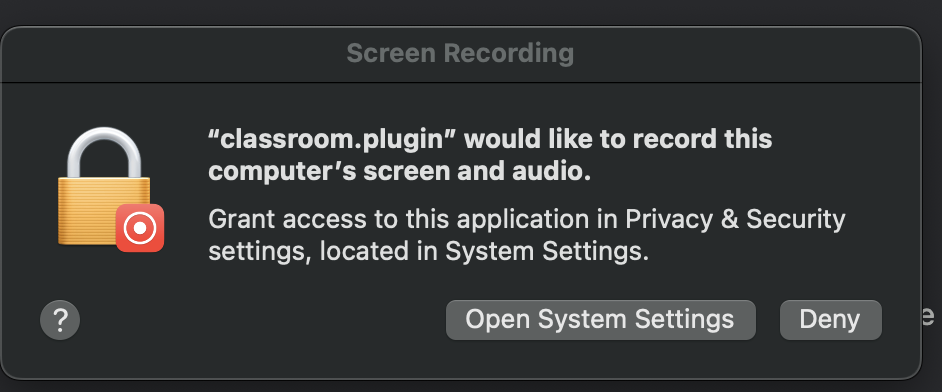
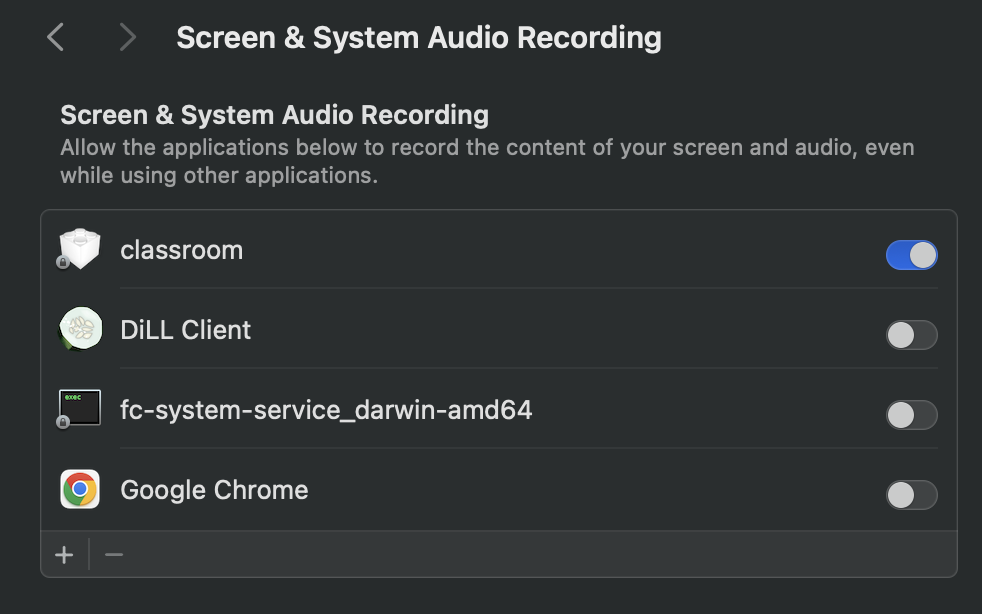
- Students: Open Chrome and they will see the first message appear (image below). They must hit Systems Settings and NOT deny. If they hit deny by 'accident" they have to go to Systems Settings and find Screen & System Audio Recording in Settings.
- Students: Toggle on "classroom" in System Settings
- Students: Hit Allow when the next message box appears.
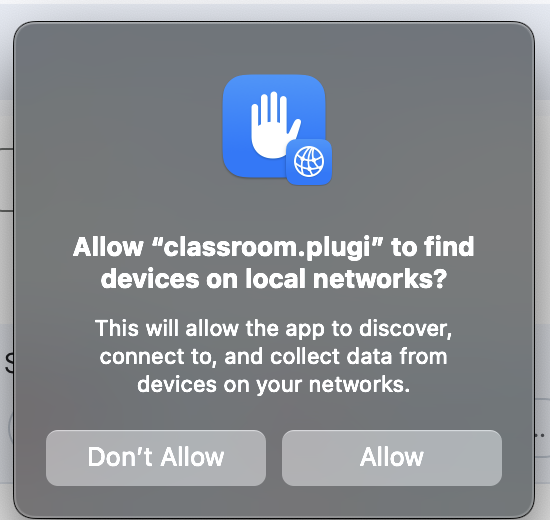
- Teachers: If students don't have any message boxes, you can click on their thumbnail in your dashboard and they will appear within a few seconds on their screen.
HIGHLY RECOMMEND you do a small group at a time so students don't "accidentally" hit the wrong icon.
These steps only have to be completed once! Once they turn on the settings it's set until they get a new device.