
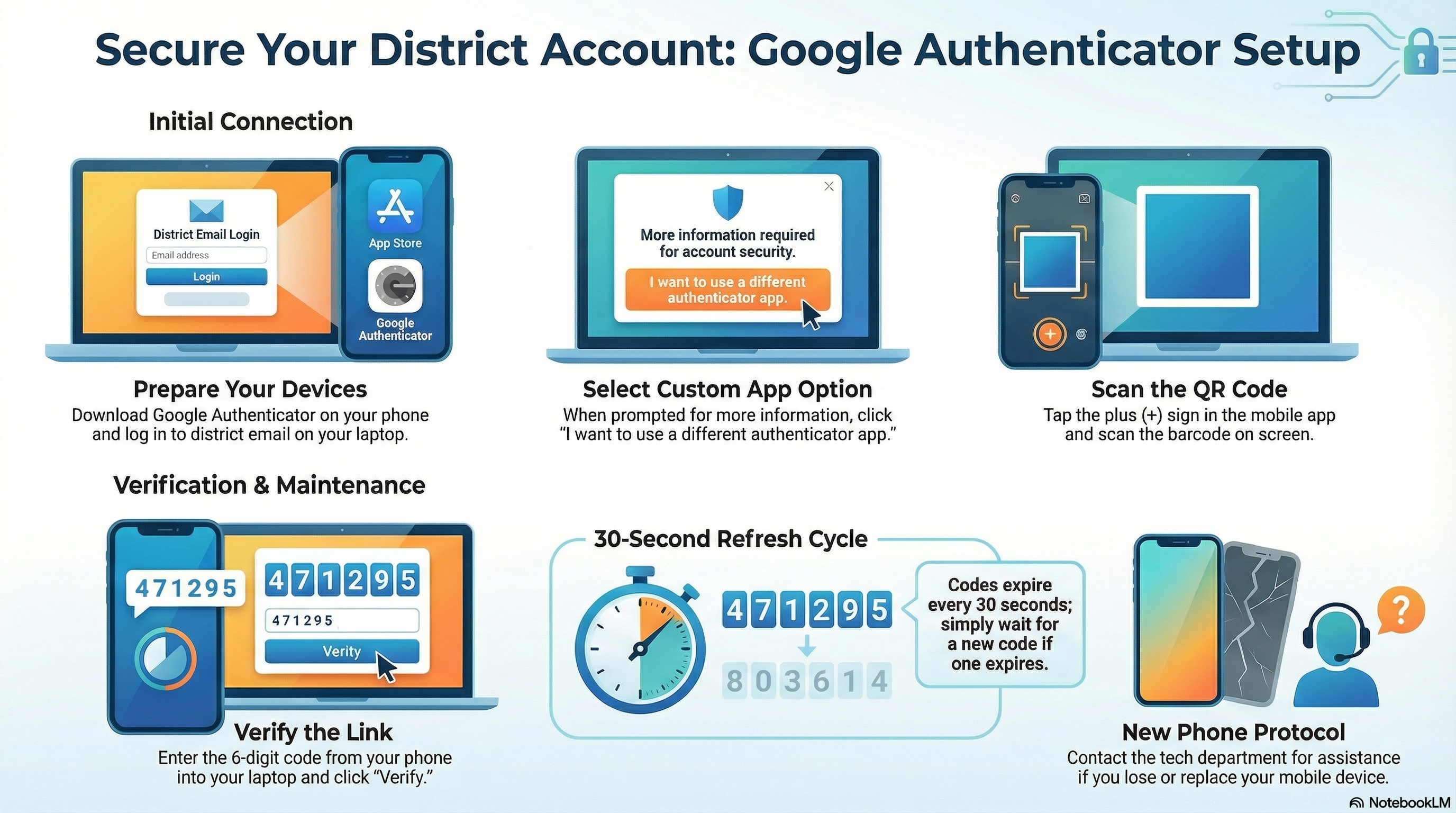
While you can do this with only your phone, it is much easier if you have both your smartphone and your school laptop right in front of you.
Grab your smartphone, go to your app store (the Apple App Store or Google Play), and download the free app called Google Authenticator.

Once the app is installed on your phone and opened, switch over to your school laptop.
- Log in to your district email using your school email address and password.
- A screen will pop up asking you to "provide more information". Click Next.
- On the following screen, do not click Next. Instead, look closely and click the small link that says "I want to use a different authenticator app".
At this point, you should see a QR code displayed on your laptop screen.
- On your phone, tap the little plus sign (+) in the Google Authenticator app
- Select "Scan a QR code" and point your phone's camera at the barcode on your laptop screen. If prompted, allow the app to use you camera.
- Your phone will immediately start showing a number code that changes every 30 seconds.
- Type the current code from your phone into the "Enter Code" field on your laptop and click Verify.
If successful, it will have accepted your code and finished logging you in. Your account is now secured with 2-Step Verification which provides stronger security for your district email.
From now on, whenever you are prompted for a code during login, just open the Google Authenticator app on your phone to get the current 6-digit number.
What should I do if the code expires before I type it in?
The code in the Google Authenticator app automatically refreshes every 30 seconds. If the one you are typing expires, simply wait a moment for the new code to appear on your phone's screen and enter that one instead.
What happens if I lose my phone or get a new one?
The best course of action would be to contact or visit your tech department for assistance in resetting your account to set up MFA on a new device. If you still have your old device, you can transfer your MFA settings to the new one.