
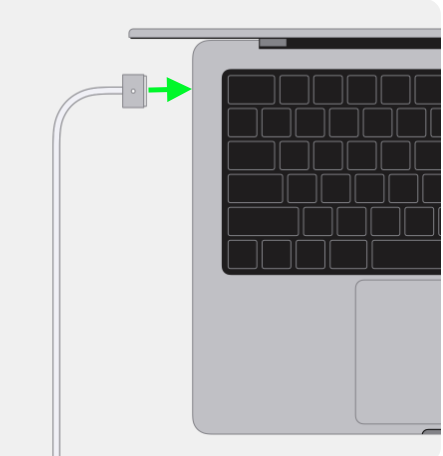
Before updating your Macbook's OS, make sure the Macbook is plugged in. The update can take as little as 15 minutes and as much as an hour depending on the size of the update and the speed of your internet connection. Plugging it in will ensure the laptop stays on.
.
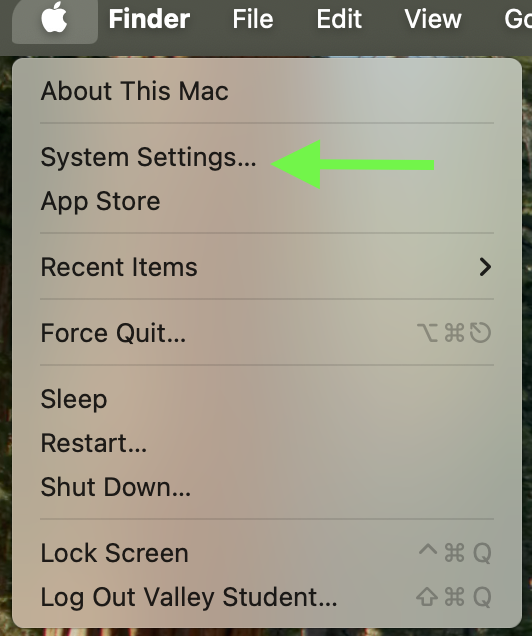
Go to System Settings
.
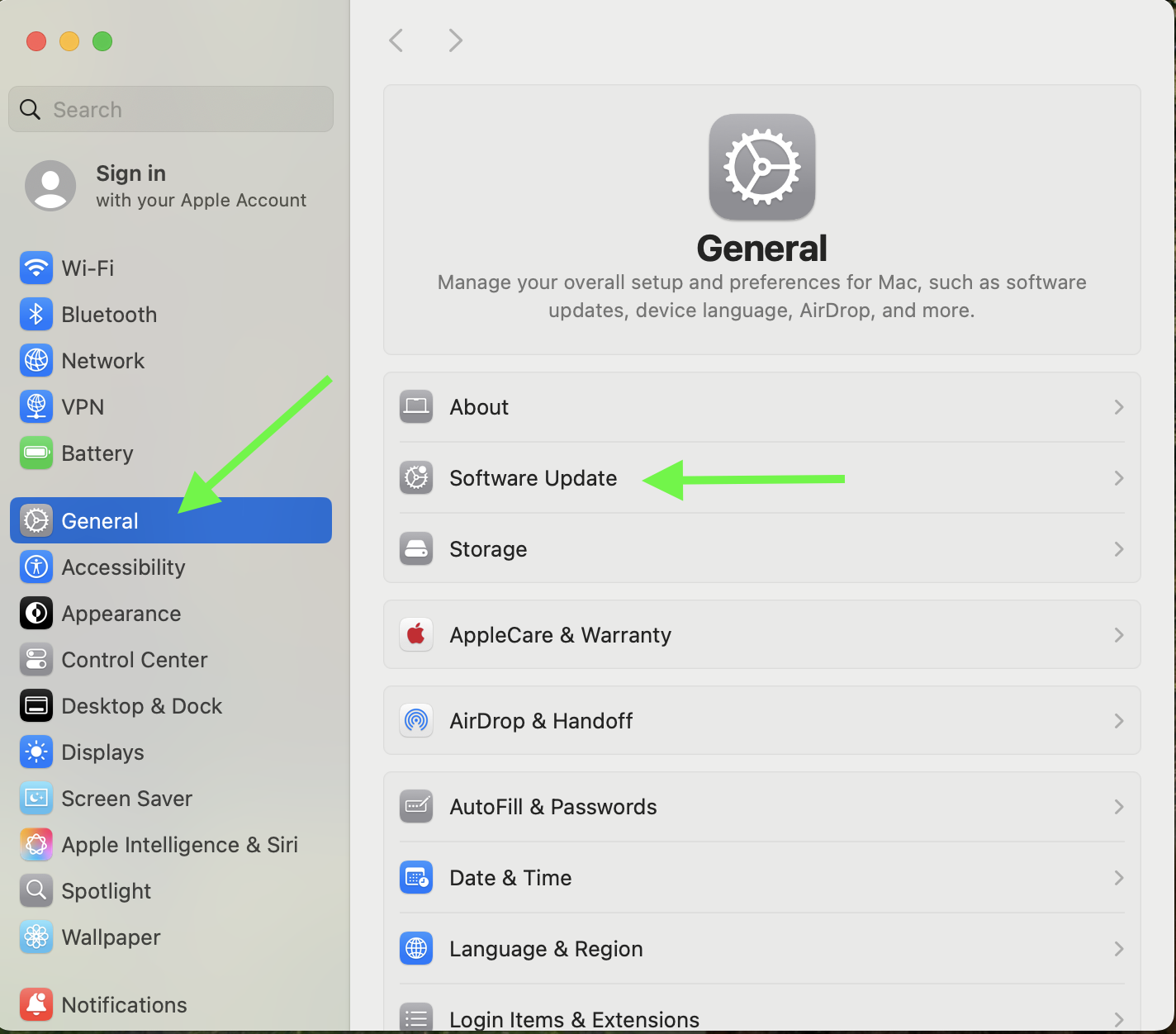
Go to General and then Software Updates
.
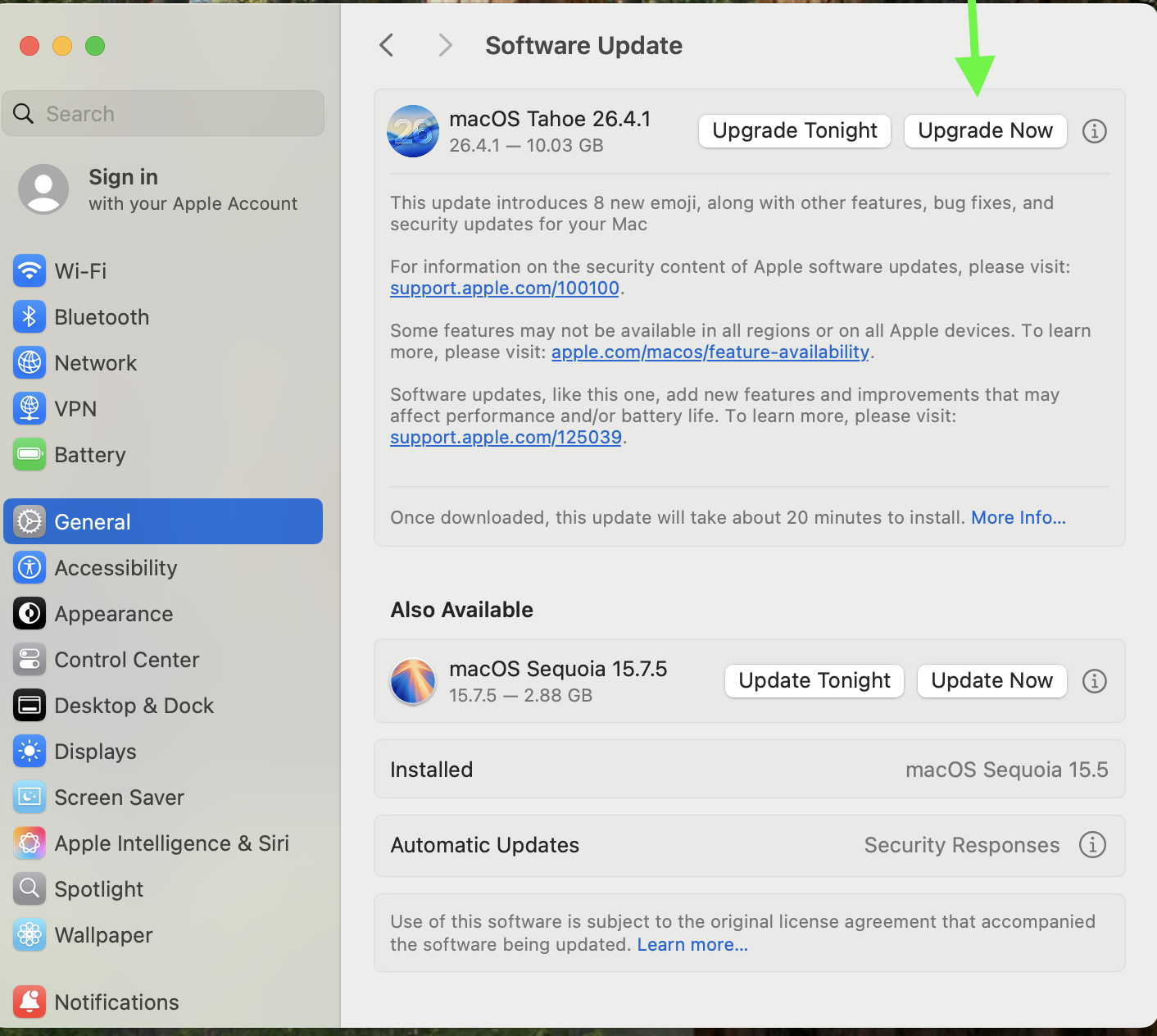
Laptop will identify updates that are available. Best option is to "Upgrade Now" and select the latest OS update if more than one are available.
.
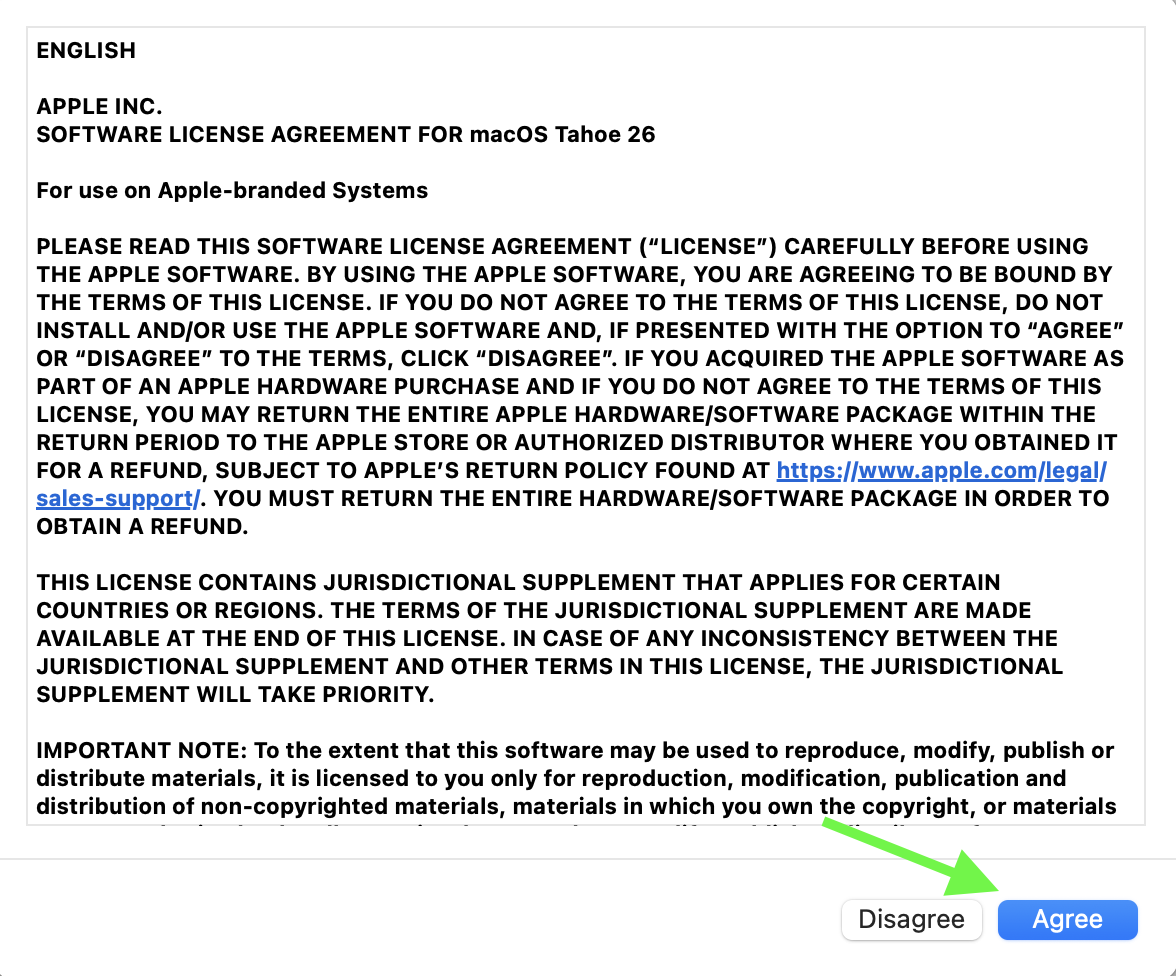
Agree to any terms to proceed
.
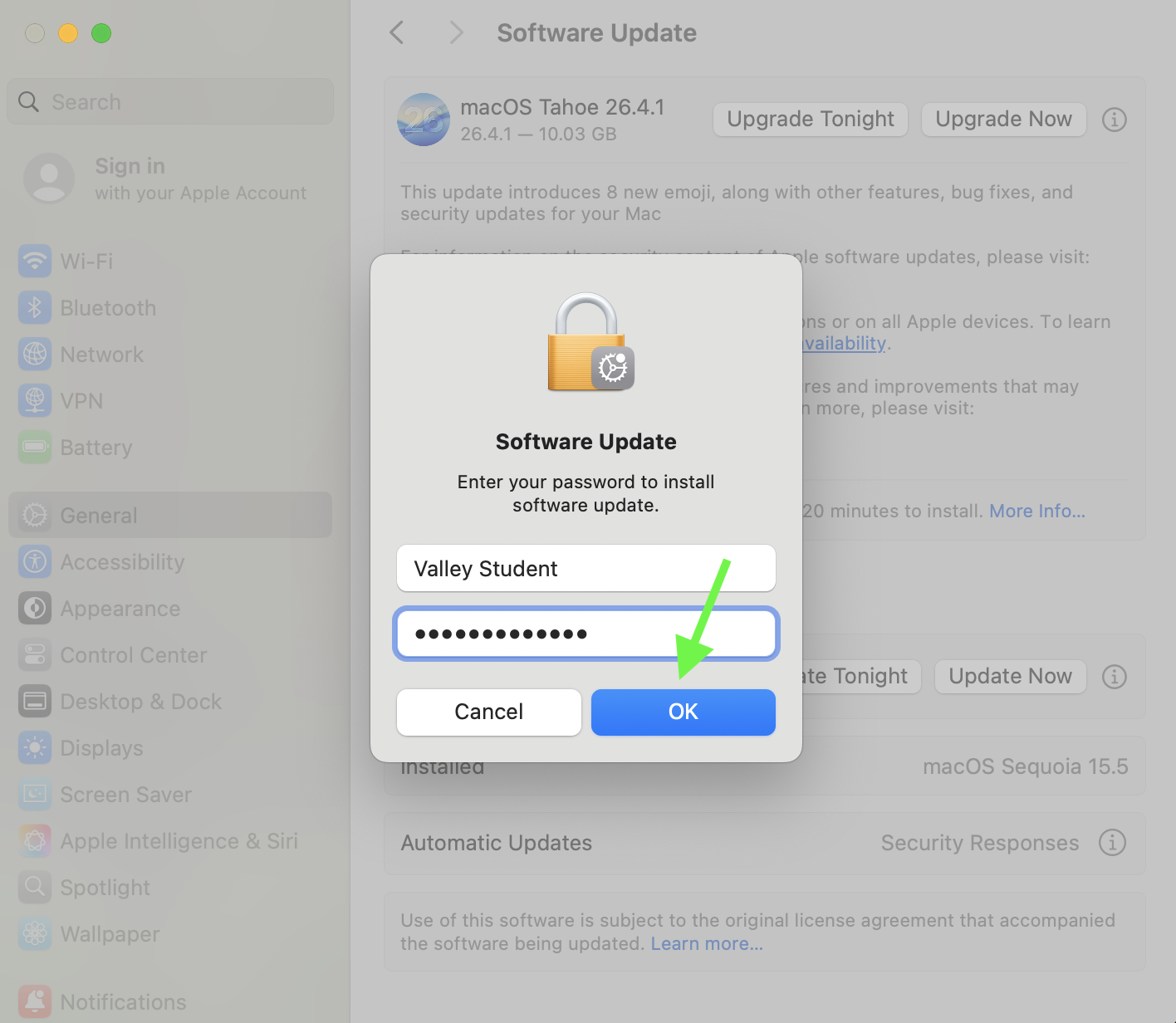
Put in your school account credentials if asked, then OK to continue
.
Watch in amazement as OS is downloaded. Download time will vary depending on the size of the update and speed of your internet connection.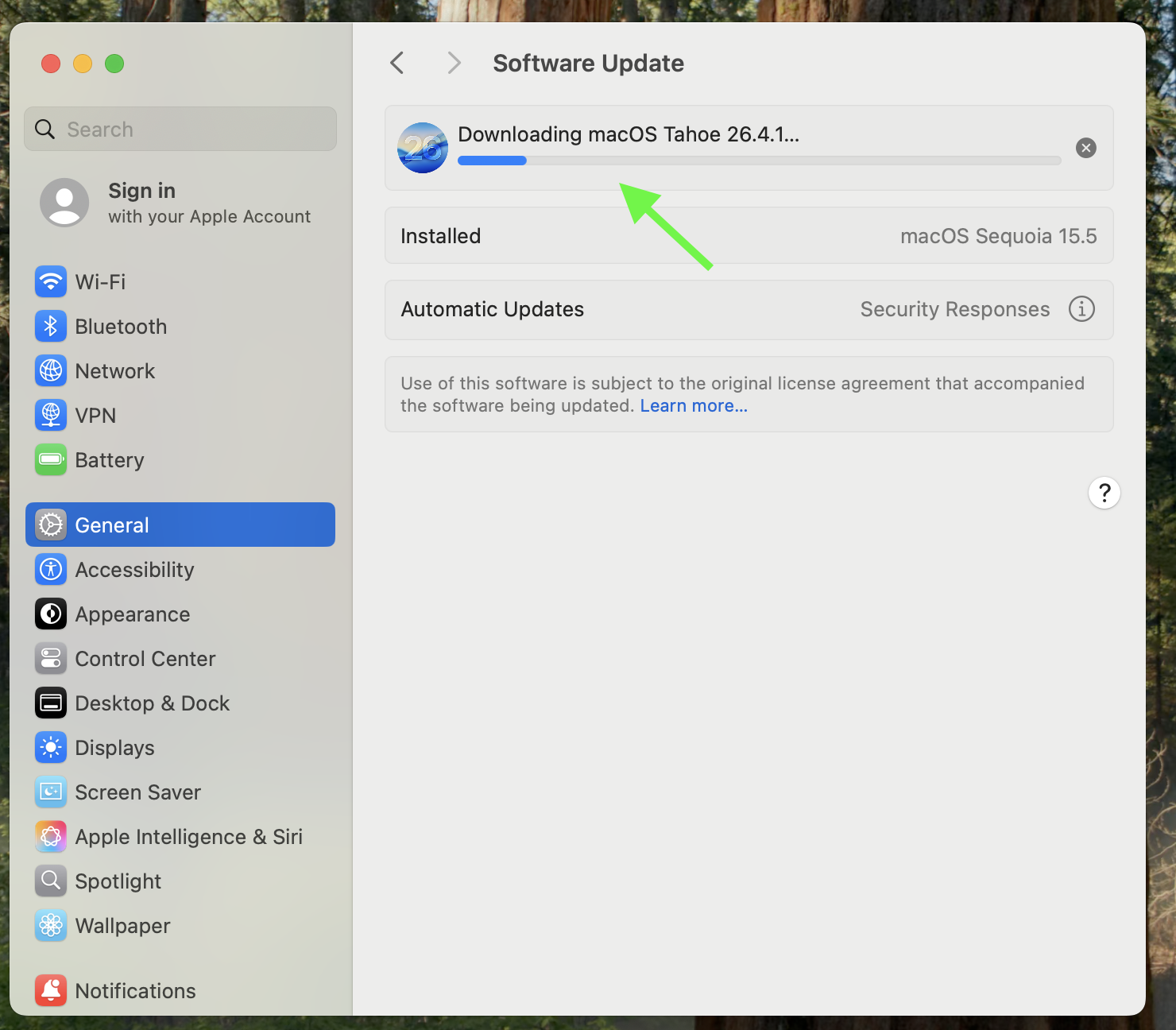
.
Once the update is downloaded, you can choose to Restart to install it now or sometime later. Its suggested to do it now.
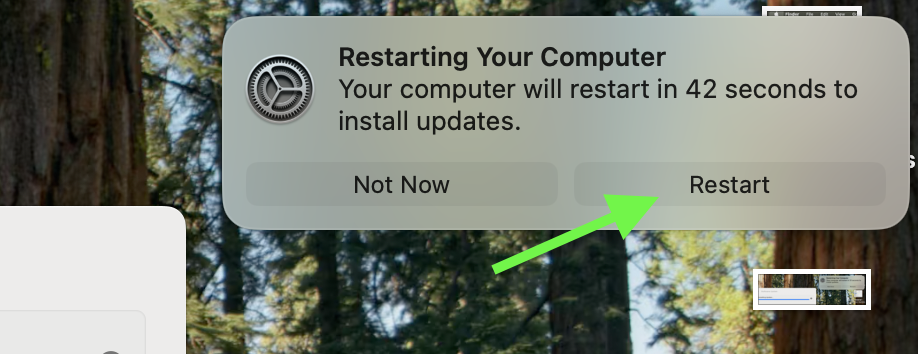
The laptop will shut down and restart several times. You should see a black screen with an Apple logo and status bar indicating progress.
Do not interrupt the install or turn off the laptop.
When completed, you should be able to log into your Macbook as usual with the OS fully updated.
 Note: On the first boot after the upgrade, you may get stuck on a screen asking for the network password to continue. Simply click bypass or continue. You do not need to enter any network password, or any password at all on this screen.
The video below is essentially the same steps as described above. It mentions Time Machine backups which you can ignore on a school device. You should however make sure important items are copied to your Google Drive for safe keeping as a best practice regardless.